PGP Encryption for Reporting API
Generate a PGP key pair so you can receive encrypted Reporting API reports
Overview
To protect Personally Identifiable Information (PII) shared through the Reporting API, DoorDash uses client-side encryption. Reports that contain PII are encrypted with your PGP public key before they are made available for download, so only you can decrypt them with your private key. This guide explains how the encryption works and how to generate and share your key pair.
Why we encrypt reports
- Data security: PII is encrypted with Pretty Good Privacy (PGP) during transmission and storage.
- Compliance: Encryption follows security best practices and compliance standards for protecting PII, and helps preserve the integrity and confidentiality of user information.
How Encryption Works
DoorDash uses PGP encryption, a widely recognized and secure method for encrypting sensitive data. You generate an RSA key pair, keep the private key, and share the public key with DoorDash.
Encryption configuration
Generate your key pair with the following configuration:
| Setting | Value |
|---|---|
| Key pair generation | RSA, minimum key size of 2048 bits |
| Compression algorithm | ZIP |
| Symmetric key algorithm | AES 256 |
| Armor | False |
| Integrity check | True |
| Buffer size | 64 KB |
Workflow
- Generate a key pair. Use the configuration above.
- Store your private key securely. Never share it.
- Share your public key as a text file.
- DoorDash encrypts your reports.
- Report files are zipped before they are uploaded to S3.
- Encryption is applied after zipping, which produces an encrypted
.pgpfile. - The encrypted file is then uploaded to S3.
Before You Begin
You need a DoorDash Technical Account Manager (TAM) contact to receive your public key. Generate your key pair before you request any encrypted report.
Option 1: Generate a Key Pair with GPG Suite (Mac)
-
Install the GUI tool from GPG Suite and follow the instructions to create a key pair.
-
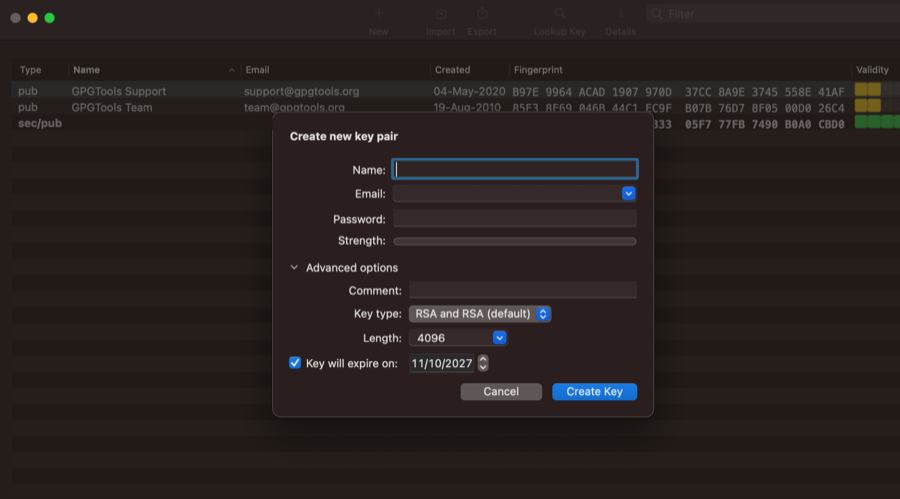
Enter your name, your email, and a new password.
-
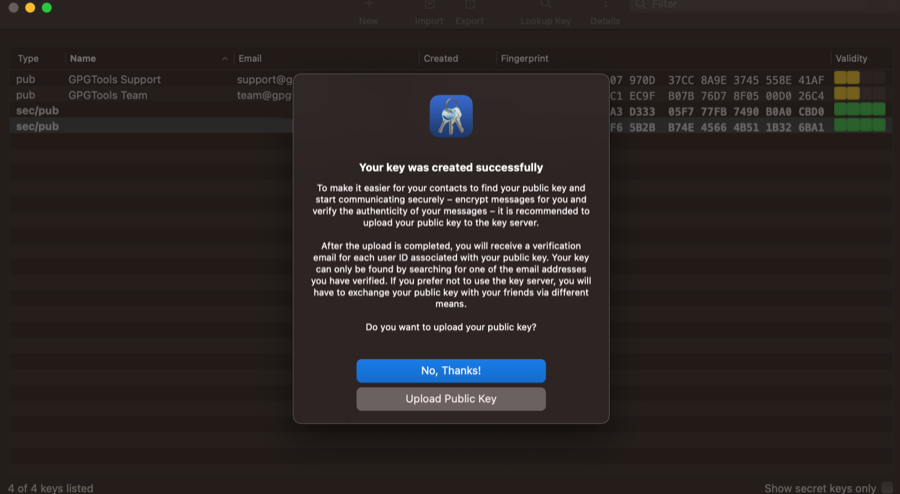
When you are asked whether to upload your public key, click No, Thanks!.
-
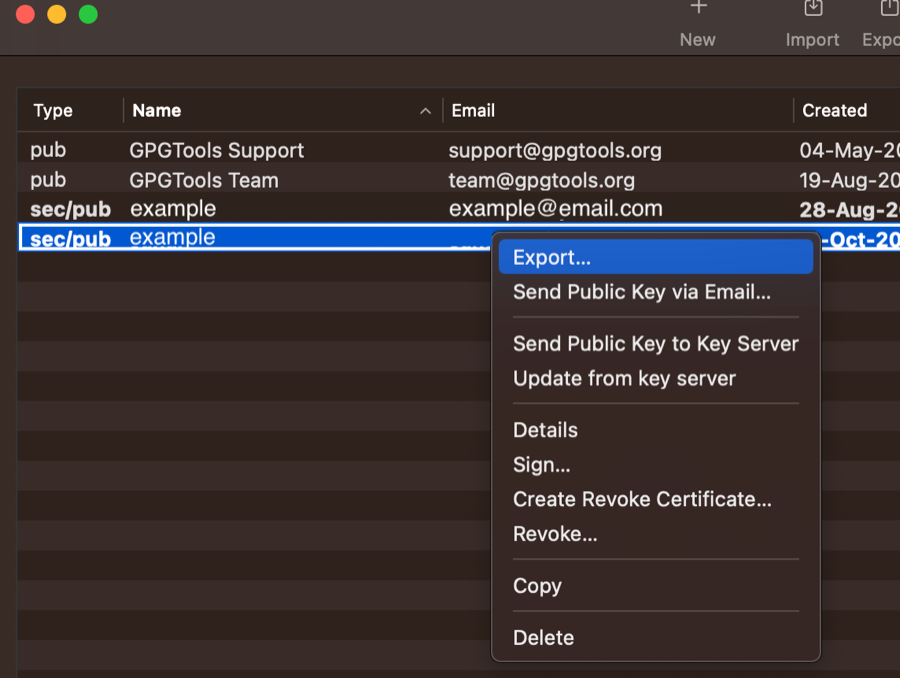
Right-click your key and choose Export... to export your public key.
-
Email the exported
.txtfile containing your public key to your DoorDash Technical Account Manager.
Important: Share only your public key. Never share your private key or its password.
Option 2: Generate a Key Pair with PGP Command Line Tools
-
Generate the key pair.
pgp --gen-key <user> --key-type <type> --encryption-bits <bits> --passphrase <pass> [--signing-bits <bits>] [options]Example:
pgp --gen-key "Alice Cameron [email protected]" --key-type rsa --encryption-bits 2048 --signing-bits 2048 --passphrase "your_passphrase" --expiration-date 2027-06-01 -
Export your public key to a text file.
pgp --export/--export-key-pair <input> [options]Example:
pgp --export "Alice C <[email protected]>" -
Email the
.txtfile containing your public key to your DoorDash Technical Account Manager.
Decrypt a PGP File
After you download an encrypted report, decrypt it with your private key.
pgp --decrypt <input> [<input2> ...] [<inputd>...] [options]
Example:
pgp --decrypt --input "D:\Folder\h837.20120613.13996.pgp" --passphrase "PrivateKeyPassphrase"
Next Steps
- Questions? Email [email protected].