Offboard a Store from Your Integration
Disconnect a store from your integration cleanly to avoid unnecessary order cancellations
Overview
The store offboarding endpoint lets integration partners disconnect a store from their integration in a single call. Using this endpoint instead of letting a store go stale prevents avoidable order cancellations and gives the merchant a clear, immediate signal that they need to reconnect.
Before You Begin
- A valid Bearer token with permission to manage the store you're disconnecting
- The
location_idof the store you want to remove from your integration
Note: This operation is irreversible. Once a store is disconnected, it must be re-onboarded to be added back to your integration.
Endpoint
PUT https://openapi.doordash.com/marketplace/api/v2/stores/<location_id>/disconnect
Path Parameters
| Parameter | Type | Description |
|---|---|---|
location_id | string | The unique identifier of the location/store you wish to remove from the integration. |
Request Headers
| Header | Description |
|---|---|
Authorization | Bearer token required for authentication. |
Content-Type | application/json |
User-Agent | <providerNameInSnakeCase>/1.0 |
Auth-Version | v2 |
Request Example
PUT /marketplace/api/v2/stores/123e4567-e89b-12d3-a456-426614174000/disconnect HTTP/1.1
Host: openapi.doordash.com
Authorization: Bearer YOUR_ACCESS_TOKEN
Content-Type: application/json
User-Agent: testProvider/1.0
Auth-Version: v2
Response Codes
| Code | Meaning |
|---|---|
200 No Content | The store was successfully removed from the integration. |
400 Bad Request | The request was malformed or missing required parameters. |
401 Unauthorized | Authentication failed. Check your access token. |
403 Forbidden | You do not have permission to remove this store. |
404 Not Found | The location with the specified ID does not exist. |
500 Internal Server Error | An error occurred on the server. |
Response Examples
Success
HTTP/1.1 200 No Content
Error (example: 404 Not Found)
HTTP/1.1 404 Not Found
Content-Type: application/json

{
  "error": "Store not found",
  "message": "The store with the specified location_id does not exist."
}
Authentication
This endpoint requires a valid Bearer token. Ensure your token is up-to-date and has the permissions needed to disconnect the store.
Implementation
- Using the merchant's
location_id, you can remove the store from your integration. - Before removing a store, let the merchant know: disconnecting will automatically pause their store on DoorDash.
Recommended Implementation: Offboarding on Merchant Churn
Use this endpoint when a merchant permanently stops using your integration for a location — for example, when they close the location, switch providers, or explicitly disconnect your service. Don't use it for temporary closures, maintenance, or connectivity issues. Call this endpoint the moment that's confirmed, as part of the same workflow that closes out the merchant's account. It is not recommended to offboard in batches into a periodic reconciliation job.
How It Works
- The merchant tells the provider they want to stop using DoorDash, either directly or through a self-serve offboarding option in the provider's own UI.
- The provider's system treats this as an event and calls this endpoint in real time, using the merchant's
location_id. - The provider listens for the response and reflects it in the merchant-facing UI right away: on success (
200 No Content), confirm the store was removed from the integration; on failure, read the reason from theerrorfield and the detailed explanation from themessagefield (see Response Examples above), and show both to the merchant. - On success, DoorDash also pauses the store and sends its own notification to the merchant (see What Happens After Disconnecting).
Why This Matters
Fewer Cancellations
Every day a store stays connected after the merchant stops fulfilling orders, more orders land on DoorDash with nobody to prepare them. Calling this endpoint immediately, rather than on a delay, closes that gap and prevents avoidable cancellations.
Temporary Deactivation
If the merchant instead wants to temporarily deactivate their integration, rather than churn outright, don't use this endpoint. Use the Store Activation Status Change API instead:
- Send
is_active: falseto pause the store. This is reversible and does not require re-onboarding. - Send
is_active: trueto reactivate the store once it's ready to receive orders again. - Use the
reasonvalue that best matches the situation. DoorDash uses it for internal reporting.operational_issuesorstore_self_disabled_in_their_POS_portalare the closest fit for a merchant-initiated pause. - If no
end_timeis specified, the store deactivates for two weeks by default and automatically reactivates. - The temporary-deactivation call does not trigger an automatic merchant notification, unlike the disconnect endpoint on this page. Notify the merchant separately if needed.
Additional Considerations
- In-flight orders. Disconnecting a store only stops new orders from being routed to it - orders already accepted continue through their normal fulfillment flow. You don't need to delay the disconnect call for them, and you don't need to cancel them either.
- Inactivity checks as a backstop. Some integrations also detect churn indirectly (e.g., no order activity for N days) and use that as a secondary trigger. Treat this as a backstop for missed events, not the primary mechanism, since it's typically too slow on its own.
For a real-world example of this kind of automation reducing cancellations, see the store status webhook case study.
What Happens After Disconnecting
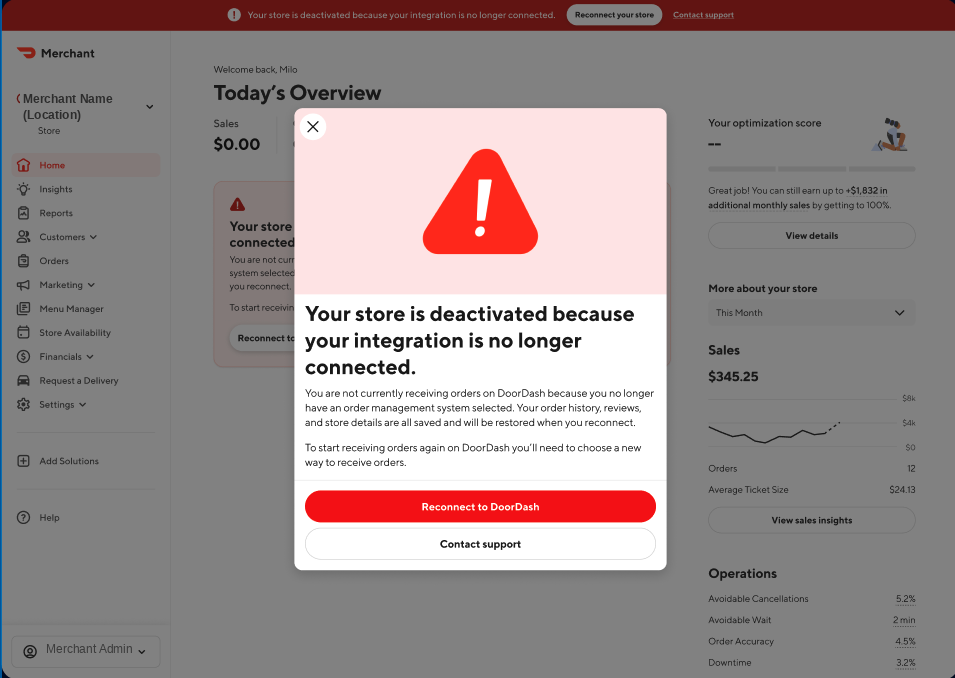
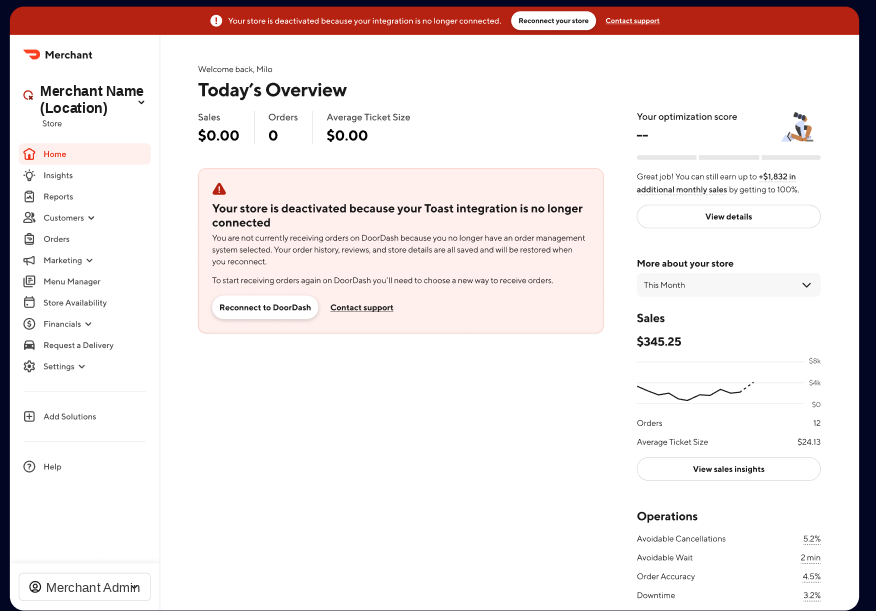
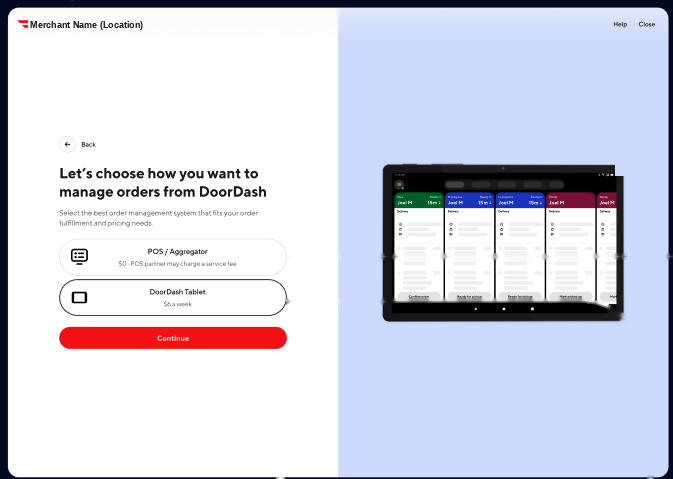
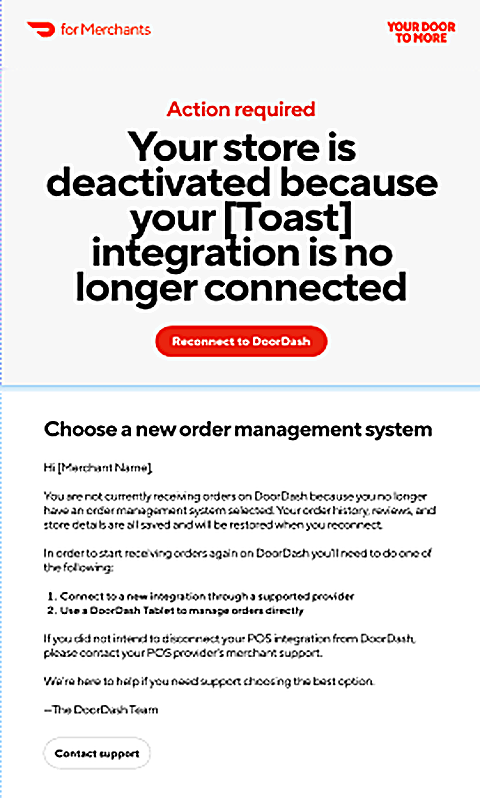
Once a store is successfully disconnected, the merchant receives an email and an in-portal notification from DoorDash letting them know their store was deactivated and walking them through how to reconnect and start receiving orders again.
Notes
- Confirm
location_idis correct and corresponds to a valid store in your integration before calling this endpoint. - This operation is irreversible — a disconnected store must be re-onboarded to rejoin the integration.
- Handle all documented error responses so partners get a clear signal when a disconnect attempt fails.
FAQ
Q: Can I reconnect a store after disconnecting it? A: No — disconnecting is irreversible through this endpoint. The store will need to go through re-onboarding to be added back to the integration.
Q: What happens to the merchant's store on DoorDash immediately after I call this endpoint? A: The store is automatically paused on DoorDash, and the merchant is notified by email and in their Merchant Portal.
Q: Should I notify merchants before I disconnect their store? A: Yes. Because the store is paused immediately and the change can't be undone through this endpoint, give merchants notice before removing their store from your integration.
Next Steps
- Questions? Reach out through Developer Portal Support.