Implement item level hours
Prerequisites
DoorDash has provided new functionality in our Open API Menu to control hourly availability at an Item Level, rather than a menu level. This information will be sent via our Menu API. Store Hours on a menu will remain the default availability if Item Hours are not defined.
Overview
This new enhancements covers two broad use cases across our current Restaurant and Convenience Merchants:
- Some items, such as Alcohol or Breakfast sandwiches, are only available for a portion of the stores total open hours. Today, Merchants are controlling this availability using multiple menus, but this is not the ideal experience when the majority of menu items are available for the total store open hours.
- Some items, such as Holiday Offerings, are available for a limited time only (LTO). Today, Merchants are controlling availability of LTO items by sending two menu updates, one when the item becomes available and one when the item stops being available. This is not ideal because any delay in this process can cause LTO items to be sellable outside of their designated time period.
This enhancement to Open API integration allows Merchants to maintain a single menu containing all items, with some items unavailable outside of their sellable hours and/or days.
Get Started
How?
DoorDash has amended the Menu API contract with 2 new arrays: item_special_hours and item_extra_option_special_hours. These arrays will accept information similar to the open_hours and special_hours arrays, with the exception that the hours will not be applied to the entire menu, but only to the item or option in which they are defined.
Menu Payload Format
Both item_special_hours and item_extra_option_special_hours arrays will contain the same fields. These fields are interchangeable, and including/excluding each will produce a different result. When a field is excluded, we will default to the store level availability for the menu.
day_index:day of the week the hours set is defined for (ex. MON, TUE, WED, etc.)start_time:HH:MM:SS when the item becomes availableend_time:HH:MM:SS when the item becomes unavailablestart_date:YYYY-MM-DD when item becomes availableend_date:YYYY-MM-DD when the item becomes unavailable
Below are a few different ways these fields can be used to limit item availability:
Scenario 1: Item is available from 5AM to 5PM every day of the week
{
"day_index": "MON",
"start_time": "05:00:00",
"end_time": "17:00:00"
},
{
"day_index": "TUE",
"start_time": "05:00:00",
"end_time": "17:00:00"
},
...
{
"day_index": "SUN",
"start_time": "05:00:00",
"end_time": "17:00:00"
},
Scenario 2: Item is only available on Monday during normal store hours.
{
"day_index": "MON",
},
Scenario 3: Item is only available during the month of April (during normal store hours)
{
"start_date": "2021-04-01",
"end_date": "2021-04-30",
},
Scenario 4: Item is available Mondays in April from 5AM to 5PM.
{
"day_index": "MON",
"start_time": "05:00:00",
"end_time": "17:00:00",
"start_date": "2021-04-01",
"end_date": "2021-04-30",
},
Marketplace Menu Experience
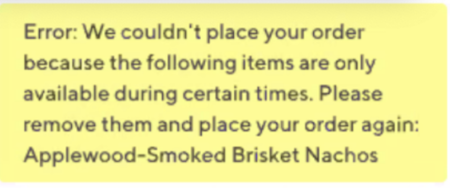
If an item with Item Level Hours was added to a customer’s cart prior to it’s sellable cutoff, but the customer is attempting to check out after the sellable hours have passed, the customer will receive a similar error below on checkout.
Menu and Item Level Hours Interaction
In this new flow, there are a few ways hours can be defined for a menu item:
| Store Hours | Store Special Hours | Item Level Hours | Result |
|---|---|---|---|
| Yes | No | No | All Items on the Menu are available for the full length of Store Hours |
| Yes | Yes | No | All Items on the Menu are available for the full length of Store Special Hours |
| Yes | No | Yes | Items with Item Level Hours defined will only be available for the hours defined. Items without Item Level Hours will be available for the full length of Store Hours |
| Yes | Yes | Yes | Items with Item Level Hours defined will only be available for the hours defined. Items without Item Level Hours will be available for the full length of Store Special Hours |
Store Hours will still need to be defined for a menu. The menu will always use the lesser of the 2 hours defined. For example, if Item Level Hours are 7am - 7pm, but Store Hours are 5am - 5pm, Items with defined Item Level Hours will be available 7am - 5pm.
FAQs
-
What timezone should my start_time and end_time be?
- The hours should be set based on the timezone of the restaurant/store.
-
What should I send if the item is not available on a certain day?
- If the item_special_hours or item_extra_option_special_hours array is sent, but does not include all days, we will assume the item is not sellable on the excluded days. For example, if the item is not sellable on Tuesdays, send the item_special_hours array with each day of the week defined except for Tuesday.
-
What happens if my Item Level Hours start before or extend past my Store Hours?
- If this happens, we will accept the menu, but will restrict the sellable hours by the Store Hours.
-
How do I set item level hours if my Item's hours if a store is open late and goes into the next day?
- If you would like to set an item's hours to be 11:15:00 A.M. to 01:05:00 A.M. (next day) do so in the following format
{
    "start_time": "11:15:00",
    "end_time": "23:59:59",
    "day_index": "THU"
},
{
    "start_time": "00:00:00",
    "end_time": "01:05:00",
    "day_index": "FRI"
}
EXAMPLE MENU:
Below is a snippet of the menu payload with Item and Item Option Level Hours fields
{
"reference": "item_level_test_yc",
    "store": {
        "merchant_supplied_id": "00070",
        "provider_type": "chick_fil_a_staging"
},
"open_hours": [
    {
        "day_index": "MON",
        "start_time": "00:00",
        "end_time": "23:00"
    },
    {
        "day_index": "TUE",
        "start_time": "01:00",
        "end_time": "23:00"
    },
    {
        "day_index": "WED",
        "start_time": "01:00",
        "end_time": "23:00"
    },
    {
        "day_index": "THU",
        "start_time": "01:00",
        "end_time": "23:00"
    },
    {
        "day_index": "FRI",
        "start_time": "01:00",
        "end_time": "23:00"
    }
],
"special_hours": [],
"menu": {
    "business_id": 123,
    "name": "Door Dash ",
    "subtitle": "",
    "merchant_supplied_id": "670969935",
    "active": true,
    "categories": [
        {
            "name": "Favorites",
            "merchant_supplied_id": "670969923",
            "active": true,
            "sort_id": 0,
            "items": [
                {
                        "name": "Reuben Meal YC",
                        "description": "Sample Description",
                        "merchant_supplied_id": "640225509",
                        "active": true,
                        "is_alcohol": false,
                        "is_bike_friendly": false,
                        "sort_id": 0,
                        "price": 381,
                        "item_special_hours": [
                                {
                                "day_index": "MON",
                                "start_time": "00:00:00",
                                "end_time": "23:00:00",
                                "start_date": "2021-03-15",
                                "end_date": "2021-04-25"
                                }
                                ],
                                "extras": [
                                    {
                                        "name": "string",
                                        "description": "string",
                                        "merchant_supplied_id": "00070",
                                        "active": true,
                                        "sort_id": 0,
                                        "min_num_options": 0,
                                        "max_num_options": 0,
                                        "num_free_options": 0,
                                        "min_option_choice_quantity": 0,
                                        "max_option_choice_quantity": 0,
                                        "min_aggregate_options_quantity": 0,
                                        "max_aggregate_options_quantity": 0,
                                        "options": [
                                            {
                                                "name": "test_yc_option_name",
                                                "description": "test_yc_option_descrip",
                                                "merchant_supplied_id": "test_yc_option_merchant_supplied_id",
                                                "active": true,
                                                "price": 0,
                                                "base_price": 0,
                                                "default": true,
                                                "sort_id": 0,
                                                "tax_rate": "0.3",
                                                "item_extra_option_special_hours": [
                                                            {
                                                            "day_index": "MON",
                                                            "start_time": "00:00:00",
                                                            "end_time": "23:00:00",
                                                            "start_date": "2021-03-15",
                                                            "end_date": "2021-04-25"
                                                            }
                                                ],
                                                "extras": []
                                                }
                                            ]
                                        }
                                    ]
                               }
                            ]
                       }
                   ]
               }
           }