Validate Your Test Order
Confirm that a retail test order reached your system, was confirmed, and matches what DoorDash sent
Overview
After you place a test order, check two places to confirm your integration works end to end:
- The Developer Portal Event log shows what DoorDash sent to your order webhook and what your system sent back.
- Your own system logs show whether the order was received, parsed, and created correctly in your order management system.
Run both checks for every test order before you request certification or production access.
Before You Begin
- A test order placed on a Developer Portal test store. Note the time you placed it.
- The DoorDash order
id, if you already have it. You can also find it in the Event log. - Access to the logs for your order webhook endpoint.
Note: Test orders are automatically canceled 15 minutes after they are placed. Finish your checks before then.
Validate in the Developer Portal Event Log
-
Sign in to the Developer Portal, select your Marketplace integration, and open Event log.
-
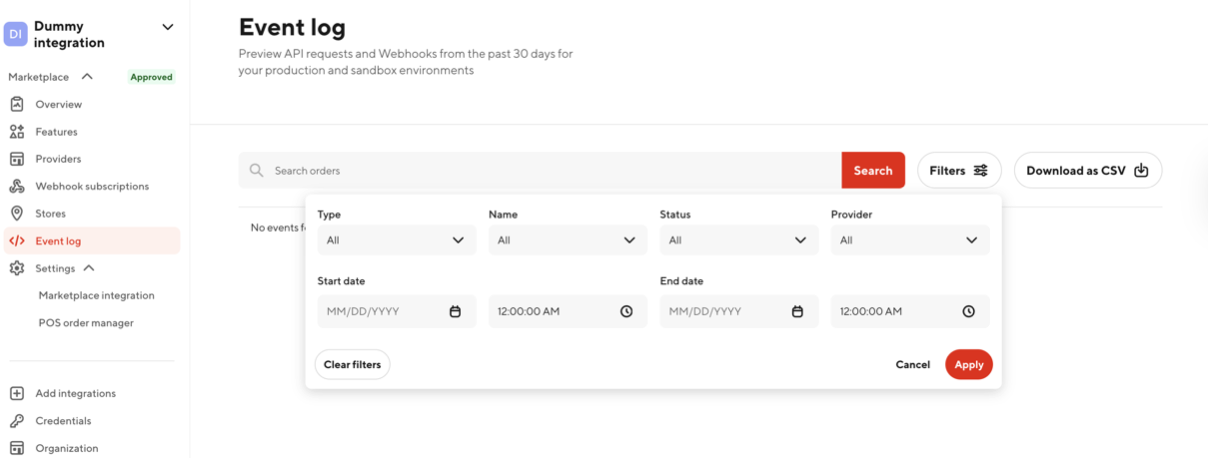
Select Filters and set:
- Start date and End date: the window when you placed the test order
- Type: Webhooks for calls DoorDash sent to you, or API requests for calls you sent to DoorDash
- Name: the event you want to check (see the table below)
- Provider: your provider, if your integration has more than one
-
To find one order, enter the DoorDash order ID or your store's Location ID in the search bar.
-
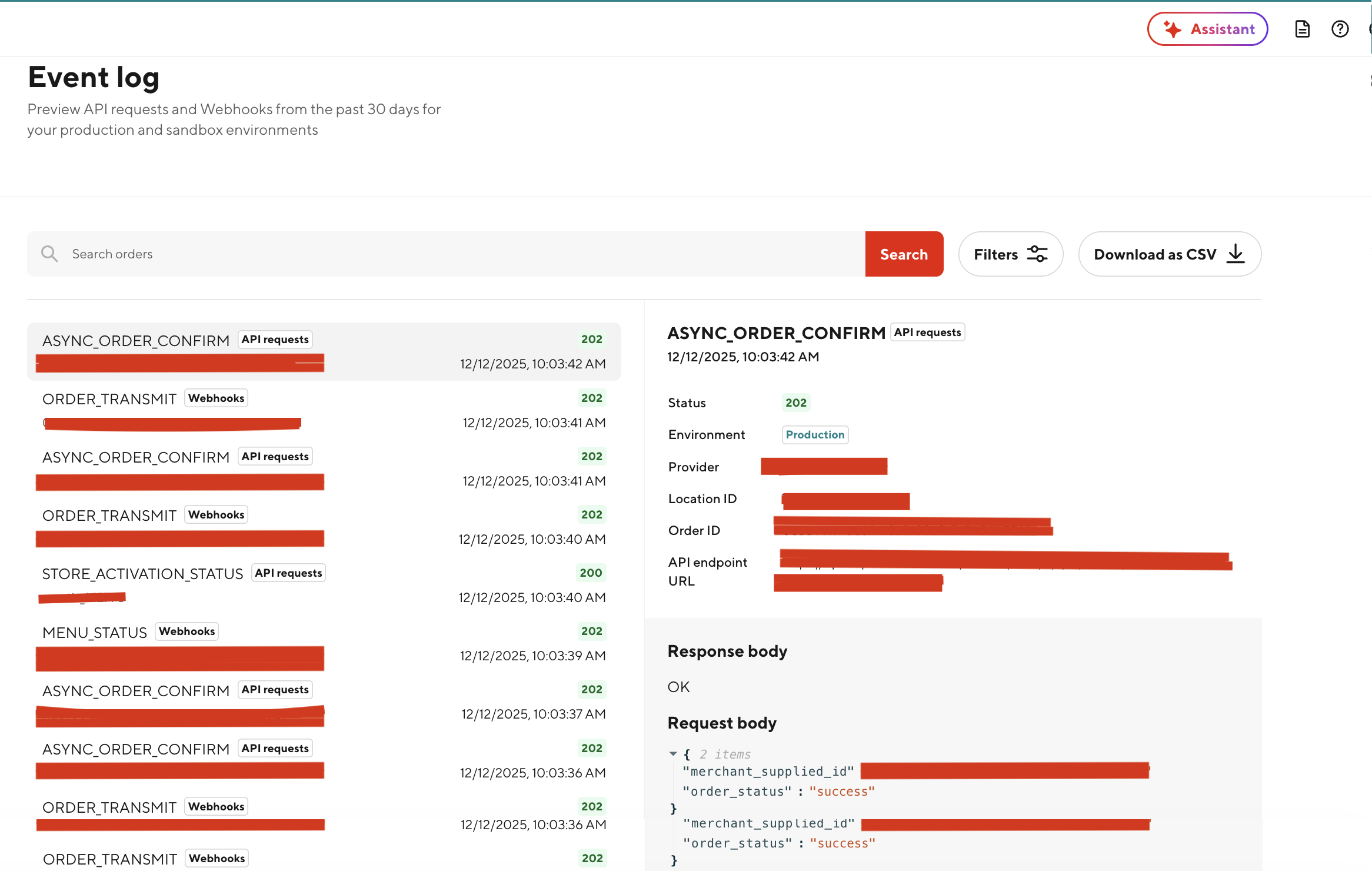
Select an entry and confirm:
- Status is 2xx
- Environment is the one you tested in
- Order ID and Location ID match your test order and store
- The timestamp matches when you placed the order
-
Review the Request body and Response body, then compare them with what your system received and returned.
Order events to check
| Event name | Type | What it shows | What to confirm |
|---|---|---|---|
ORDER_TRANSMIT | Webhooks | DoorDash sent the new order to your order webhook | Your endpoint returned 200 (synchronous confirmation) or 202 (asynchronous confirmation) |
ASYNC_ORDER_CONFIRM | API requests | Your system confirmed the order with PATCH /marketplace/api/v1/orders/{id} | Status is 2xx and order_status is success, or fail with a failure reason |
ORDER_EVENTS | API requests | Your system sent the Order Ready signal | Status is 2xx |
ORDER_ADJUST | API requests | Your system adjusted the order | Status is 2xx |
ORDER_CANCEL | Webhooks or API requests | DoorDash canceled the order, or your system canceled it | Status is 2xx |
Tip: If you return
202onORDER_TRANSMIT, look for a matchingASYNC_ORDER_CONFIRMwithin 3 to 8 minutes. DoorDash treats an order that isn't confirmed in that window as failed.
Validate in Your System
Inbound webhook receipt
- Confirm your logs show the
ORDER_TRANSMITrequest reaching your webhook URL. - Match the request using the DoorDash order
id. If you return your own order ID inmerchant_supplied_idwhen you confirm, record both IDs.
Schema and parsing
Confirm your system parsed all the fields it relies on, including:
store.merchant_supplied_id(your store ID)- Each item's
merchant_supplied_id,quantity, andpriceundercategories[].items[] subtotal,tax, andis_tax_remitted_by_doordashfulfillment_typeandestimated_pickup_time
See the sample order for the full payload.
Business rules
Confirm the order created in your order management system matches the DoorDash order: items, quantities, prices, special instructions, fulfillment type, and pickup timing.
Confirmation response
- If you confirm synchronously, confirm you returned
200on the webhook. Any non-2xx response is treated as an order failure. - If you confirm asynchronously, confirm you returned
202and then sent the order confirmation within 3 to 8 minutes. - Log the response body you sent back to DoorDash for traceability.
If Something Doesn't Look Right
Work through these checks before you contact support.
No events in the Event log
- Widen the date range and confirm you're looking at the correct environment and provider.
- Search by your store's Location ID.
- Place a new test order and note the exact time.
Events show errors
Open the failing entry and note the Status and the Response body from your system. Common causes:
| Status | Likely cause |
|---|---|
401 / 403 | Your webhook authentication is misconfigured, or a secret was rotated |
404 | Wrong webhook path or environment, or the store isn't mapped |
400 / 422 | Your system rejected the payload, for example a missing required field or a type mismatch |
5xx / timeout | Your endpoint is slow or failing. Return 202 right away and process the order asynchronously |
Order isn't in your order management system
- Confirm your webhook handler creates the order after it validates the payload.
- Check your store and item ID mappings, and any rules that reject orders.
Use Dev Chat AI
Select How do I fix this? on the failing event, or open the Assistant in the Developer Portal. Share the failing request and your response body, then follow the suggested steps. See the Dev Chat AI guide.
Re-test
Place a new test order and repeat both validations above. Keep one failing and one successful example for your records.
Contact Support
If the issue remains after these steps, submit a request through Support in the Developer Portal. Include:
- The event name, order ID, and Location ID
- Timestamps in UTC
- Your request and response samples
- The email address of the account that placed the test order