Event Logs AI
A guide to monitoring integration health and resolving issues using AI-powered event insights
Overview
Event Logs AI provides Marketplace integration partners with a centralized, intelligent way to monitor integration health and troubleshoot failures. Instead of manually searching through raw API and webhook logs, Event Logs AI analyzes event data and surfaces the most important failures, their impact, and recommended next steps.
The goal of Event Logs AI is to help partners:
- Understand what is failing
- Identify how often failures occur
- See how many stores are impacted
- Learn what an error means
- Know how to fix the issue
- Validate fixes without relying heavily on Support or Technical Account Managers
Event Logs AI is designed to be the first place you go when something is not working as expected in your integration.
What Are Event Logs?
Event logs are records of activity generated by your integration, including:
- API requests sent to DoorDash
- Webhooks sent from DoorDash to your system
Each event captures details such as request type, status code, timestamps, and request or response payloads. While these logs are useful, they can be difficult to interpret at scale when thousands or millions of events are involved.
Event Logs AI adds an intelligence layer on top of these logs by grouping similar failures, identifying patterns, and highlighting which issues require attention.
Accessing Event Logs AI
- Sign in to the Developer Portal
- Select your Marketplace integration
- Navigate to the Overview page
The Overview page acts as the primary dashboard for Event Logs AI insights
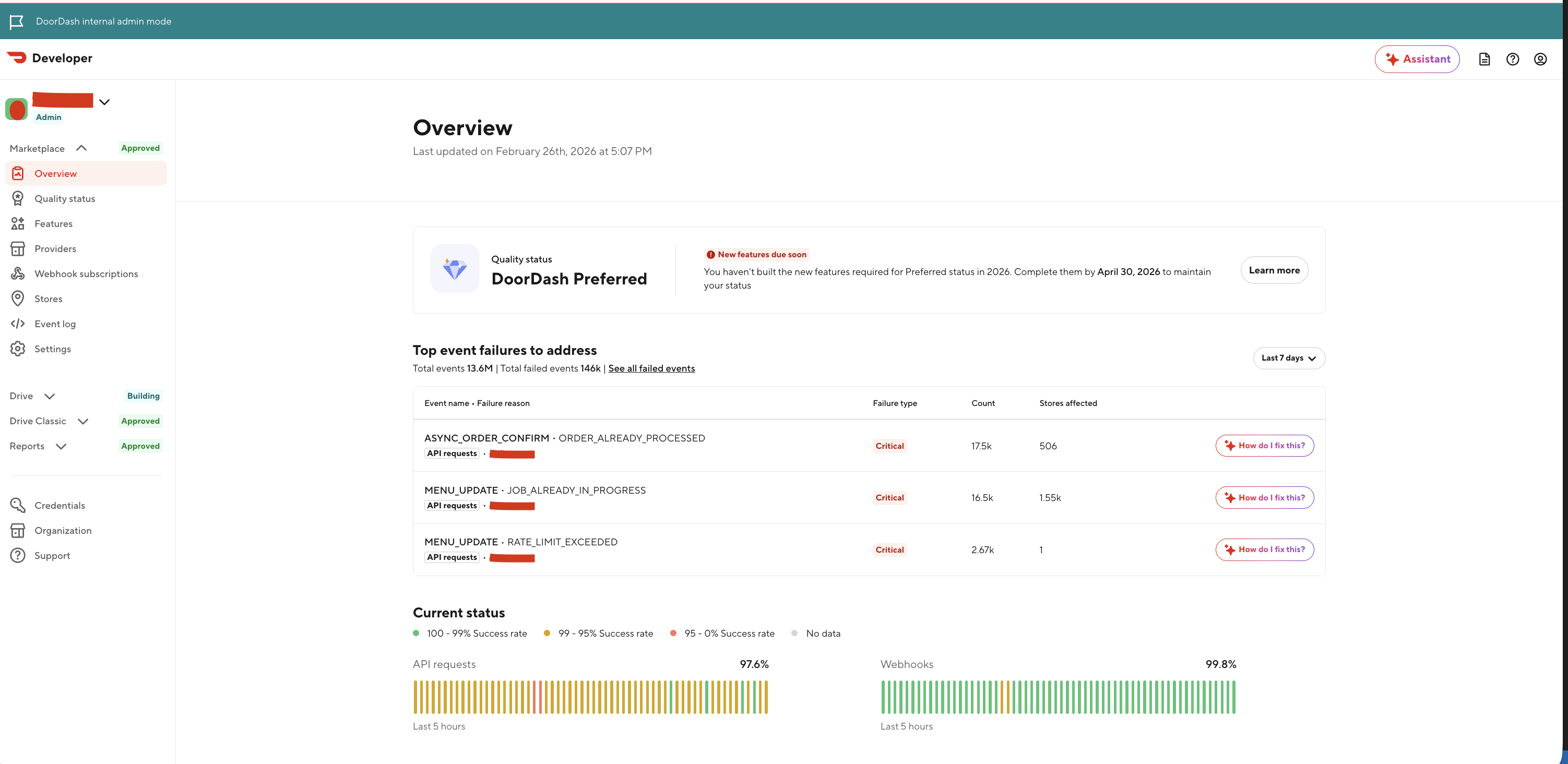
Understanding the Overview Page
Top Event Failures to Address
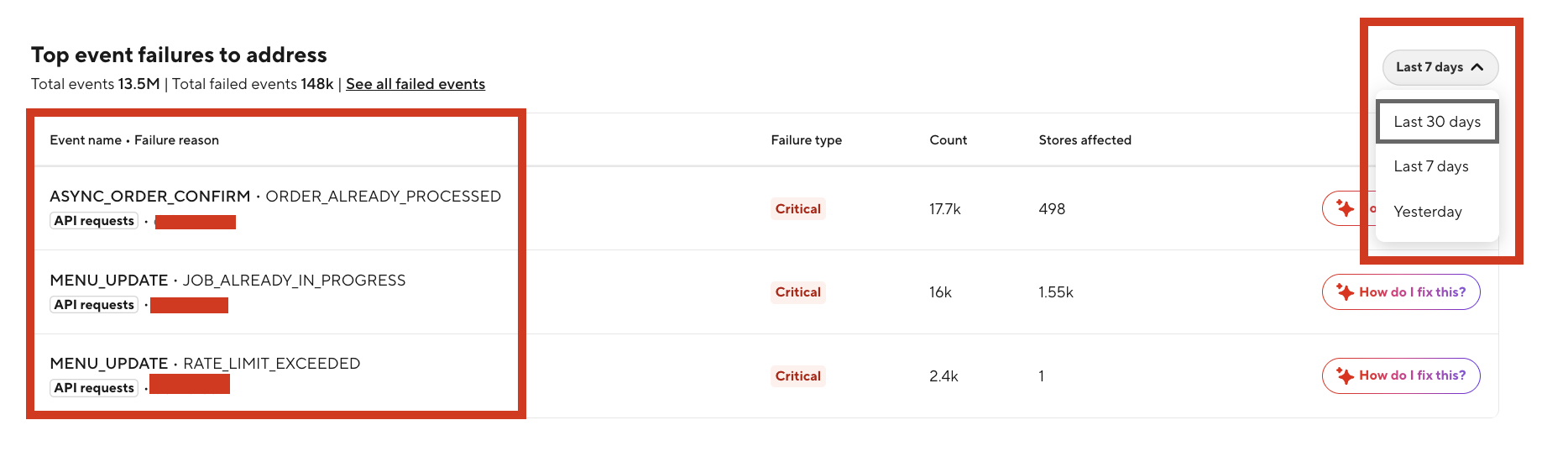
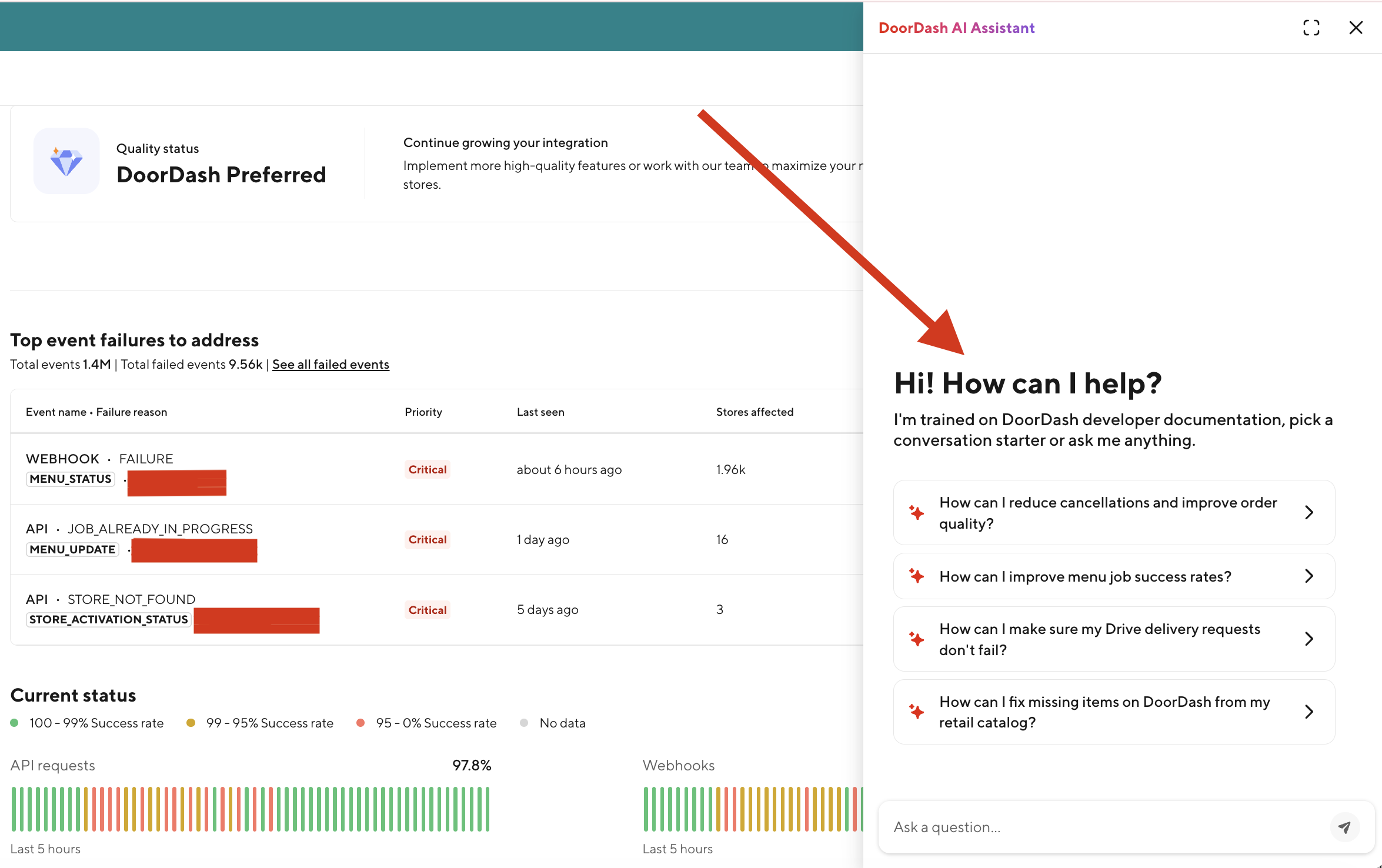
The Top event failures to address section is the core of Event Logs AI. It presents a prioritized summary of the most significant issues detected within your integration.
This section answers the following questions:
**What is failing? ** Failures are grouped by event name and failure reason. This prevents repeated individual failures from appearing as separate issues.
How severe is the issue? Each failure includes:
- A Priority level (such as Critical or Warning)
- The number of stores affected
- The total number of occurrences during the selected time period
How recently did this happen? The “last seen” timestamp helps determine whether an issue is ongoing or historical.
What should I do next? Each failure includes a How do I fix this? action that provides guided troubleshooting.
Use this list to quickly identify and prioritize the most impactful problems affecting your integration.
Note: The Priority shown in the table reflects the Failure Type assigned to that event.
Failure Types
Each failed event is assigned a Failure Type of either Critical or Warning, determined by the Event Name. While the Failure Reason explains what caused the failure, the severity level is defined at the event level based on its overall business impact.
Critical
- An event is classified as Critical when it represents a core workflow required for marketplace operations. These events directly impact order processing, menu accuracy, or other essential functionality.
- Failures in these events may affect customers, merchants, or fulfillment and should be addressed as soon as possible.
Warning
- An event is classified as Warning when it relates to an important but non‑blocking workflow within the integration lifecycle.
- These failures do not immediately disrupt core business operations, but may impact data consistency, reporting, or secondary processes. They should still be reviewed and resolved.
Time Range Selection
By default, the dashboard displays data from the last seven days. You can change the time range to view data from:
- Yesterday
- The last 7 days
- The last 30 days
Adjusting the time range helps you understand whether an issue is newly introduced, recurring, or already resolved.
Viewing All Failed Events
To see the individual events behind the AI summary:
- Select See all failed events
- You will be taken to the Event log page
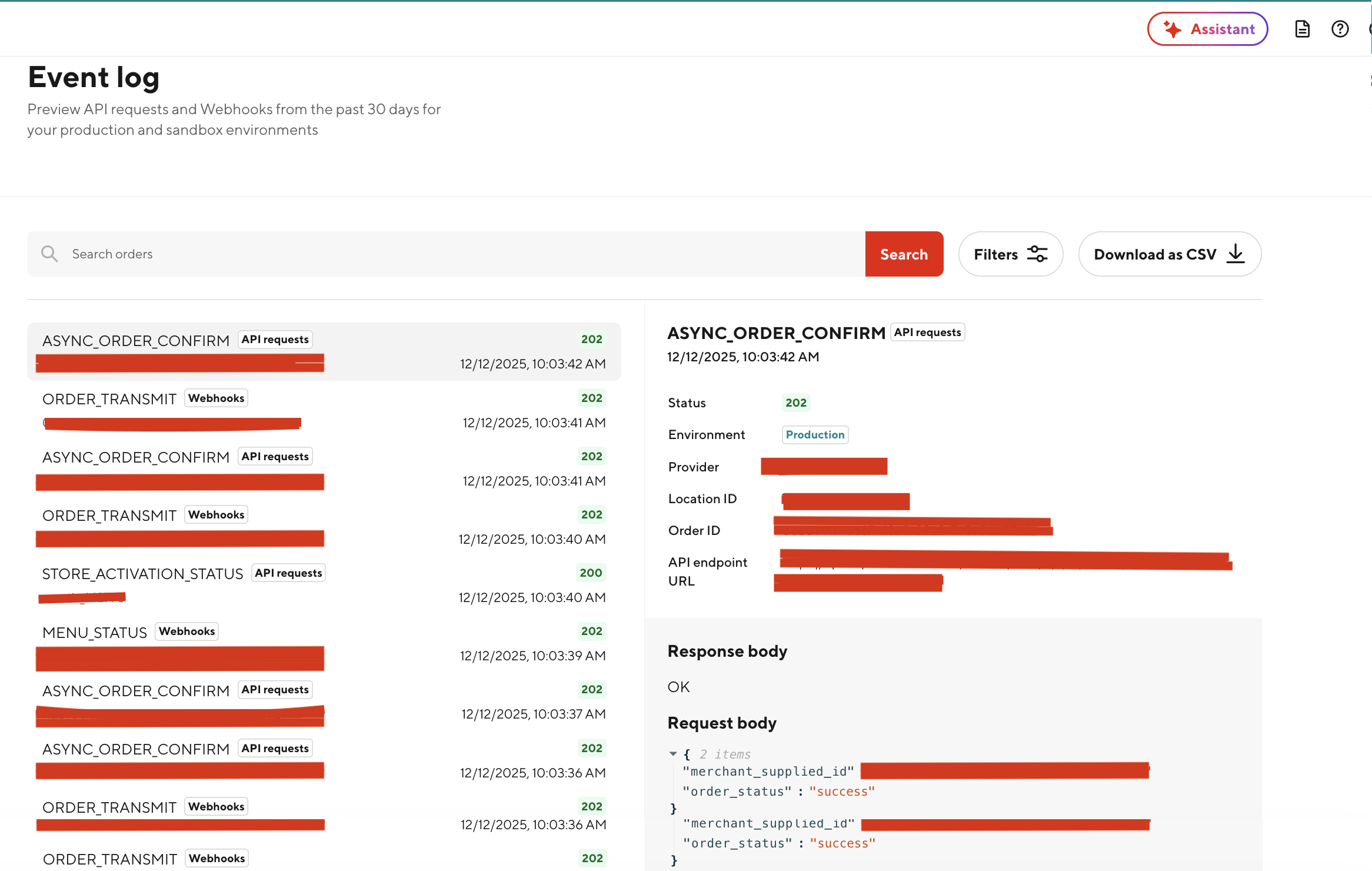
The Event log provides a detailed, chronological view of API requests and webhooks from the past 30 days for both production and sandbox environments.
From this page, you can:
- Search events by keyword, ID, or event type
- Filter by API requests or webhooks
- Inspect HTTP status codes
- View full request and response payloads
- Download logs as a CSV file
This view is useful when you need to validate specific payloads or confirm technical details after applying a fix.
Seeing failures in Event log with filters
You can validate a surfaced failure by filtering the Event log to a specific event and reason:
- Open Event Logs and select Filters
- Choose the relevant event name or failure reason from the dropdowns
- By Event name (for example, ASYNC_ORDER_CONFIRM), or
- By Failure reason (for example, MISSING_POS_MENU)
- Apply the filters to see all events matching that criteria
- The left panel lists matching events with status and timestamps; selecting one shows details on the right, including:
- Status, Error reason, Environment, Provider, Location ID, Order ID, and API endpoint URL.
- Full request/response bodies for technical validation.
- A contextual How do I fix this? link for that event.
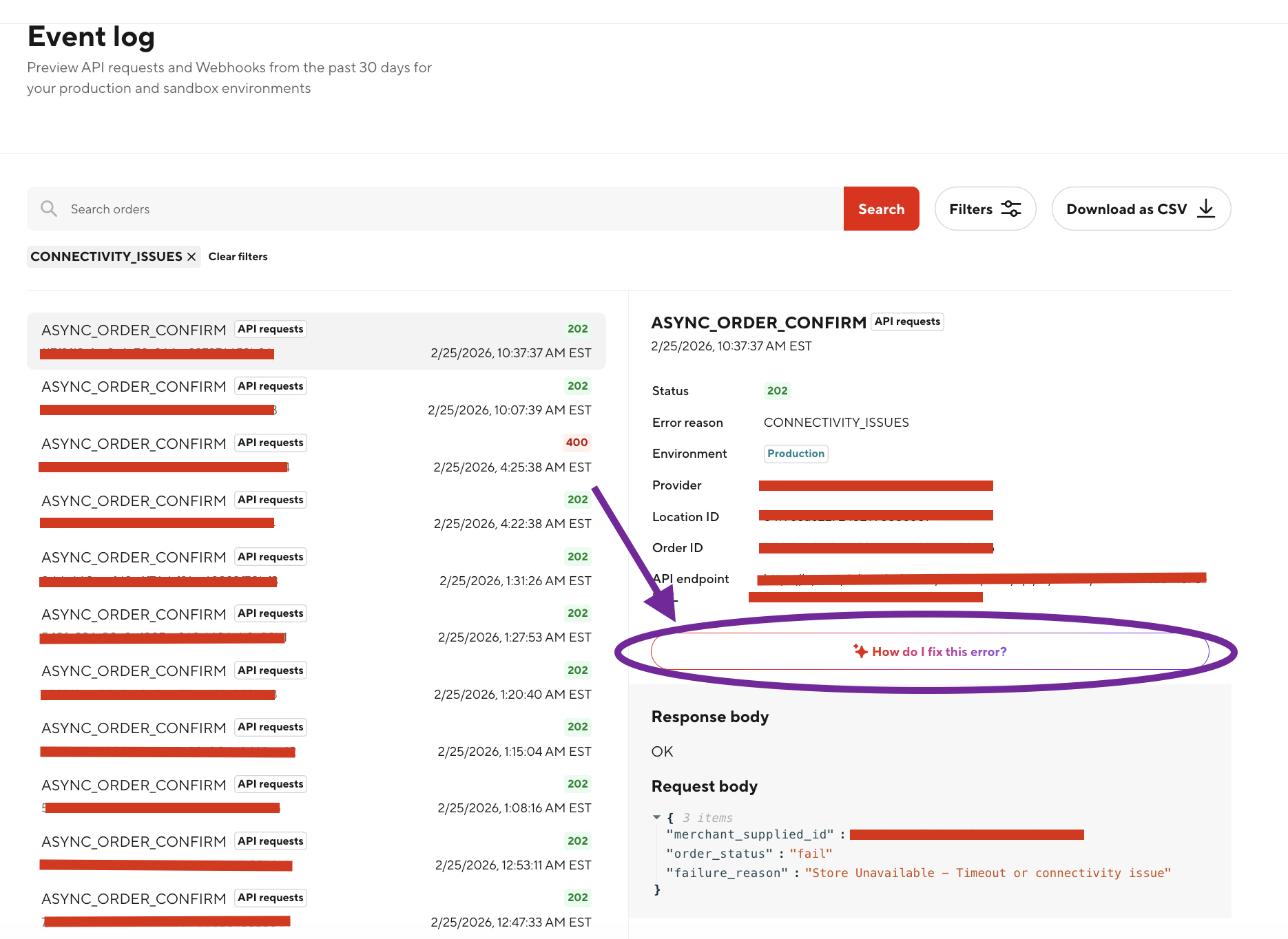
Using “How do I fix this?”
Selecting How do I fix this? opens Dev Chat AI, which provides context-aware troubleshooting guidance for the selected error.
Dev Chat AI explains:
- What the error means in plain language
- Why the failure occurred
- What steps are required to fix the issue
- Whether the issue requires configuration changes, retries, or sequencing updates
- Sample request formats when applicable
This allows partners to resolve common issues independently without needing to escalate to Support.
Common Error Types and How to Address Them
MISSING_POS_MENU
What this means A menu update request was sent for a store that does not yet have a POS menu associated with it.
Why this happens
Menu updates can only be applied after a menu has been successfully created.
What to do next
- Create a menu for the store using the menu creation flow
- Confirm the menu creation job completed successfully
- Retry the menu update after creation
FAILED_TO_PULL_MENU
What this means DoorDash attempted to retrieve menu data from your system but did not receive a valid response.
Why this happens
- The menu endpoint may be unreachable
- Authentication may be invalid
- Required menu fields may be missing
What to do next
- Verify endpoint availability
- Confirm authentication credentials
- Validate the menu payload structure
DUPLICATE_LOCATION_ID
What this means The same location identifier was included multiple times in a request.
Why this happens
Duplicate location IDs can occur when menu or store data is generated incorrectly.
What to do next
- Remove duplicate entries
- Ensure each location ID is unique within the request
JOB_ALREADY_IN_PROGRESS
What this means
A menu job is already running for the store.
Why this happens
Submitting concurrent menu jobs for the same store is not supported.
What to do next
- Wait for the existing job to complete
- Avoid submitting overlapping menu updates
Recommended Troubleshooting Workflow
- Start on the Overview page
- Review the Top event failures to address
- Select How do I fix this? for the most impactful error
- Apply the recommended fix
- Validate the fix using the Event log
- Monitor error counts and success rates over time
Following this workflow helps reduce repeated failures and improves integration stability.
When to Contact Support
If an issue cannot be resolved using Event Logs AI and Dev Chat AI:
- Navigate to Support in the Developer Portal
- Select the appropriate category
- Include relevant details such as:
- Event name and failure reason
- Store IDs affected
- Time range of the issue
- Request and response payloads
Providing this information ensures faster and more accurate support responses.
Summary
Event Logs AI enables partners to move from reactive troubleshooting to proactive integration management. By surfacing error counts, identifying recurring failures, explaining root causes, and guiding fixes, Event Logs AI empowers partners to resolve issues independently and maintain high-quality integrations.
This tool should be used as the primary mechanism for monitoring integration health and troubleshooting issues before reaching out to Support.